Indeed Vivaldi

First things First
- A deep tutorial about Vivaldi features.
- A paid Ad.
- The best way to use Vivaldi ever.
- How I use it for my workflow.
- The configs and keybindings that make sense for me.
- A way for you see if this browser make sense for you.
Why Vivaldi?
Three main points!
I was after the browser that runs on less RAM usage possible, and it’s a problem because most of the time the sites are part of the problem too, as web developers have a tendency to
not care about resources usageuse too much resources to create their sites.Vertical tabs and Workspaces It’s way better than having the tabs at top consuming vertical space, of having all the things I need ready to.
Customizable! In special keybindings, I’m what people call a power-user, the never touch the mouse, Nvim+Tmux no life configs hacker.
Hibernation
Vivaldi has a feature where it ‘hibernate’ the tabs after sometime, but as it allows to customize this, I use a shortcut CMD+Shift+W to unload all the other Tabs from memory manually, and other one to unload from the other workspaces too, this way I can free memory on demand and stop unnecessary swap on the SSD
Vertical Tabs + Workspaces
How long it took to people notice that we don’t need the tabs taking our vertical space? It make the organization so much easier for power-users that most of the time have +10 tabs opened.
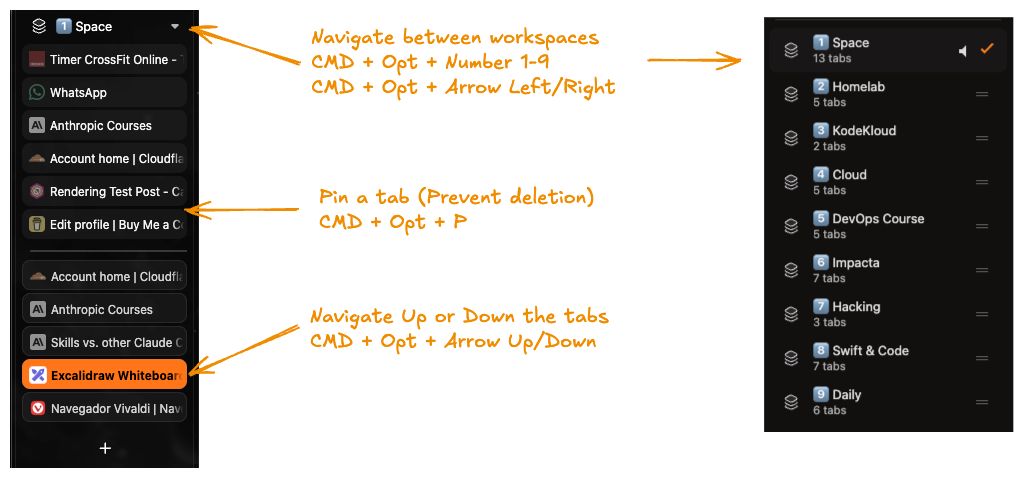 And even better being used together with the workspaces separating my stuff by context, I have the sites that I opened
but hibernated on each workspace. So if I’m studying/working I’m not looking at unrelated stuff and at least for me it
work as a guardrail to enforce good discipline habits.
And even better being used together with the workspaces separating my stuff by context, I have the sites that I opened
but hibernated on each workspace. So if I’m studying/working I’m not looking at unrelated stuff and at least for me it
work as a guardrail to enforce good discipline habits.
I like the toggle behavior for any kind of panel/window or similar where the same keybinding open and close it.
Keybindings
For me it’s a instant deal break if I can’t define my custom keybindings, in special to free real state and navigation.
Bellow are some that I use to keep things clean, as you can see it’s possible to hide even the URL bar.
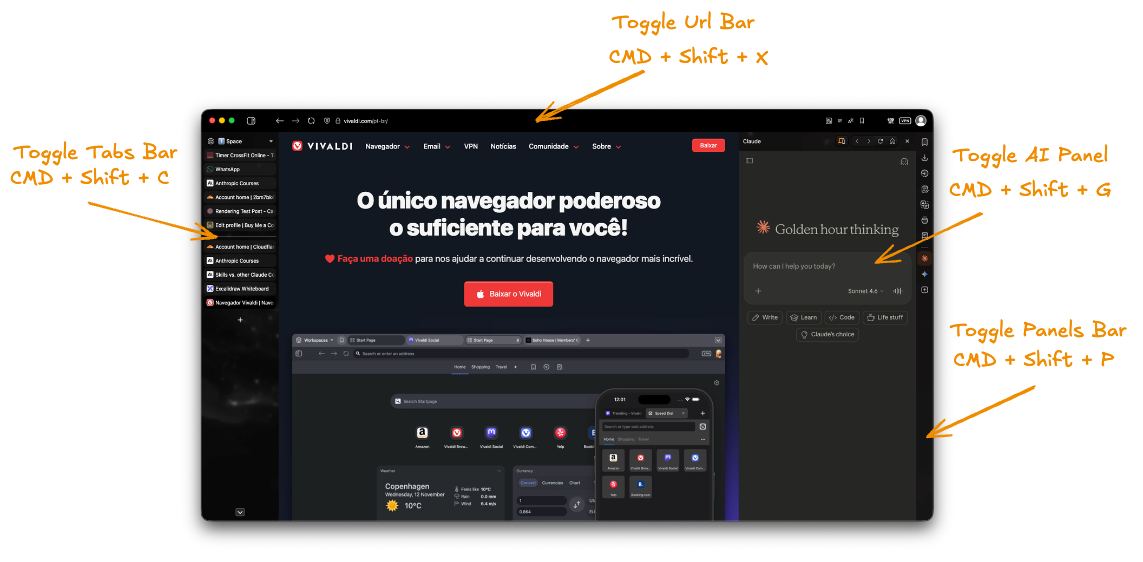
Bellow is like I use the browser normally, with an eventual AI panel being open as
I’m using it more than I
use Google search these days.
| Command | Shortcut |
|---|---|
| Close Tab | ⌘W |
| Find in Page | ⌘F |
| Focus Address Bar | ⌘L |
| Copy URL | ⌥⌘C |
| New Private Window | ⇧⌘N |
| New Tab | ⌘T |
| Page Refresh | ⌘R |
| Page Reload (No Cache) | ⇧⌘R |
| Pin Tab | ⌥⌘P |
| Reopen Closed Tab | ⇧⌘T |
| Tab Move Backward | ⇧⌘↑ |
| Tab Move Forward | ⇧⌘↓ |
| Toggle Panel | ⇧⌘P |
| Toggle Developer Tools | ⌥⌘I |
| Toggle Claude Panel | ⌘G |
| Toggle Address Bar | ⇧⌘X |
| Toggle Footer | ⌘/ |
| Toggle Force Dark Mode | ⇧⌘D |
| Toggle Panel | ⇧⌘P |
| Toggle Tab Bar | ⇧⌘C |
| Toggle UI Autohide | ⇧⌘/ |
| Workspace Switch 1-9 | ⌥⌘1 to ⌥⌘9 |
| Workspace Switch Back | ⌥⌘← |
| Workspace Switch Forward | ⌥⌘→ |
| Settings | ⌘, |
Split View
I only use the vertical split, but I let the horizontal one configured too, and third one to reset both to the normal.
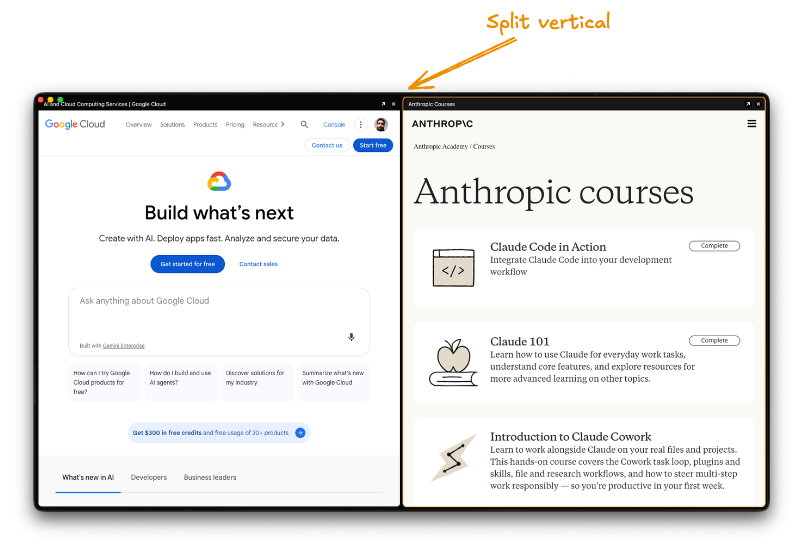
| Command | Shortcut |
|---|---|
| Split vertical | Shift+Opt+\ |
| Split horizontal | Shift+Opt+- |
| Split reset | Shift+Opt+= |
The CSS part
Custom CSS
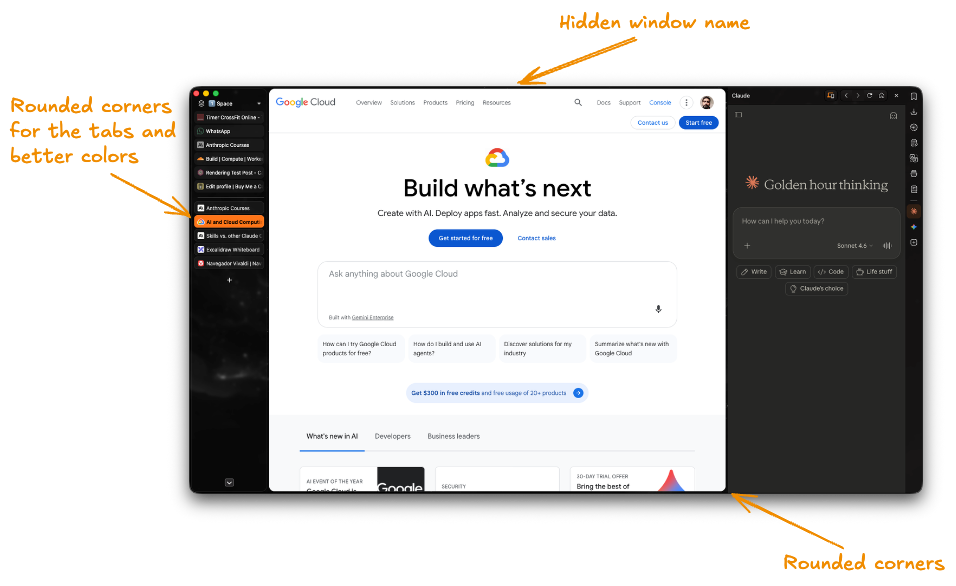
This is totally unnecessary and fruit of having too much time and Anthropic Pro plan, so why not use Claude Code to make some custom CSS for me?
If you just installed Vivaldi maybe you found it’s not exactly the most beautiful browser among the competition, in special if you’re a Arc, Zen, Dia user.
The last browser I was using was Zen, and it’s beautiful! Just a little too resources hungry at the moment, in special the rounded style and vertical tabs appearance, so why not ask my slave Claude to give it a try to beautify Vivaldi as well.
Nothing to write home about, but some sincere cherry in the cake.
/* Make the central canvas corners rounded */
#webview-container {
  margin: 4px;
  border-radius: 14px;
  overflow: hidden;
  border: 1px solid rgba(128, 128, 128, 0.15);
  box-shadow: 0 4px 15px rgba(0, 0, 0, 0.1);
}

/* Round the corners of the vertical tab bar */
#tabs-container.left {
  margin: -2px 0 4px 4px; /* Matches your 4px webview margin */
  padding: 20px 0 0 0; /* This is in order for the workspace name don't stay under the semaphore */
  border-radius: 14px;
  overflow: hidden;
  border: 1px solid rgba(128, 128, 128, 0.15);
  box-shadow: 0 4px 15px rgba(0, 0, 0, 0.1);
}

/* Change the background of ONLY the active/focused tab */
.tab.active {
  background-color: #FF7518 !important; /* Replace with your color */
  color: #000000 !important; /* This is the text color */
  font-weight: bold !important;
}

/* Change the background-color for all tabs without focus */
.tab {
  border: 1px solid rgba(128, 128, 128, 0.15);
  color: #D3D3D3 !important;
}

/* Change background-color for pinned tabs */
.is-pinned .tab {
  border: 1px;
  color: #F5F5F5 !important;
}

/* Remove the titlebar of the browser as hidden the url keeps the header name */
#header, #titlebar {
    display: none !important;
}
The result is the bellow, and well… I just noticed that my minimalist changes don’t appear this good on this image, it doesn’t look as good as it’s on a real high res screen.